Productivity · October 28, 2026
From Paper to Prompt: How to Scan Notes Into ChatGPT and Actually Use Them
Turn paper notes into AI-ready documents, then use ChatGPT for summaries, tasks, emails, briefs, and study guides.
If you have paper notes, printed briefs, workshop pages, or forms, the workflow is simple: scan the pages into a clear PDF, upload it to ChatGPT, ask for a specific output, then check the result against the original. The quality of your scan matters as much as the prompt. Better pages create better summaries, task lists, emails, reports, and study guides.
What changed: ChatGPT camera can scan multiple pages
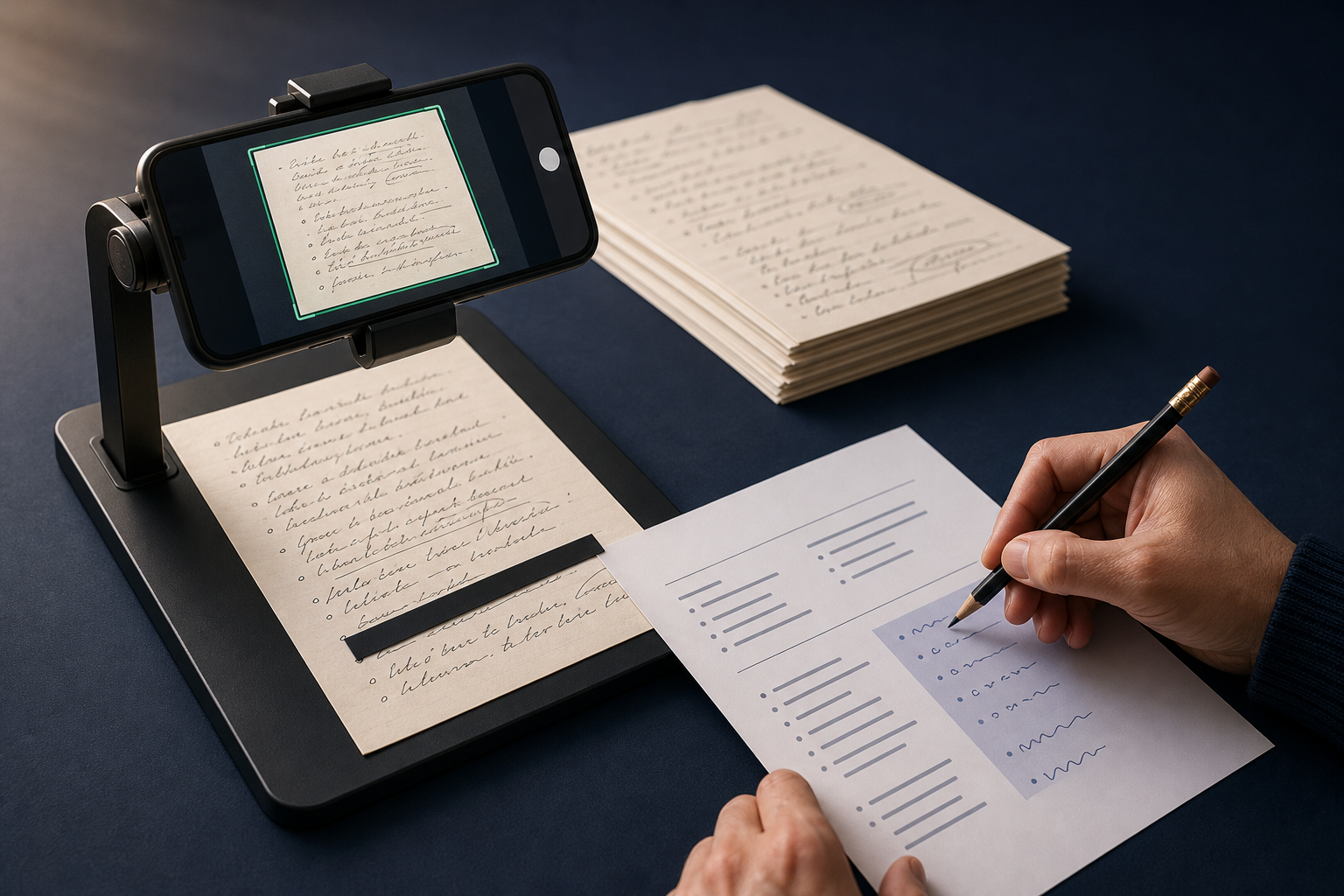
According to OpenAI’s ChatGPT release notes dated October 1, 2026, ChatGPT camera can capture multiple pages in a row and automatically combine them into a single PDF ready to upload to a chat. The note says to open the camera, use the three-dot menu, and select Scan. OpenAI describes this as rolling out on iOS.
Source: ChatGPT release notes | OpenAI Help Center
Important availability note: the supplied source does not state Android availability, web availability, plan eligibility, region limits, or a rollout completion date. Treat those details as unknown unless you verify them in the app or OpenAI’s current documentation before publishing or training others.
That matters because this is a practical workflow, not a promise that every reader will see the same button today.
Why paper-to-prompt workflows often disappoint
Most bad AI outputs from paper notes start before the prompt.
The scan is blurry. A page is missing. A sticky note covers a decision. Handwriting is misread. A table is captured sideways. The document contains confidential information that should not have been uploaded.
Then someone asks ChatGPT, “Summarize this,” and gets something that looks polished but quietly misses the point.
A better AI note workflow has four parts:
- Capture: Create a clean scan or PDF.
- Check: Confirm pages, order, readability, and sensitive content.
- Prompt: Ask for a defined output, not a vague summary.
- Verify: Compare the answer with the original before using it.
This guide walks through that process for beginners.
What you can scan into ChatGPT
This workflow works best for physical documents that contain useful context but are not easy to reuse in their current form.
Good candidates include:
- Meeting notes written in a notebook
- Printed project briefs with margin notes
- Workshop flip-chart pages
- Interview notes
- Student lecture notes
- Annotated reports
- HR onboarding checklists
- Event planning sheets
- Client discovery notes
- Printed SOPs that need to become editable drafts
Be more careful with:
- Employee records
- Medical, legal, or financial documents
- Customer data
- Signed contracts
- Internal strategy documents
- Anything covered by company policy, regulation, or confidentiality agreements
If the information is sensitive, read our guide on how to protect confidential information when using AI at work before uploading it anywhere.
Step 1: Prepare the pages before scanning
A few seconds of preparation can prevent most OCR mistakes.
Before you scan:
- Flatten the pages. Curled corners and shadows make text harder to read.
- Use good lighting. Natural light or a bright desk lamp is better than dim overhead light.
- Remove clutter. Keep only the page in the camera view.
- Keep pages in order. Number them lightly if the order matters.
- Separate mixed documents. Do not combine meeting notes, contracts, and unrelated forms in one file.
- Check handwriting. If a word is important and messy, rewrite it clearly in the margin before scanning.
If your notes include diagrams, arrows, or boxes, keep the whole page visible. Cropping too tightly can remove the context that explains a decision.
Step 2: Scan notes into ChatGPT or create a PDF
If you have access to the ChatGPT camera scan feature described in OpenAI’s October 1, 2026 release notes, you can use it to capture multiple pages and combine them into a single PDF.
A simple beginner process:
- Open ChatGPT on your phone.
- Open the camera.
- Use the three-dot menu.
- Select Scan if available.
- Capture each page in order.
- Review the combined PDF before uploading it to the chat.
If you do not see this feature, do not force the workflow. Create a PDF using a scanning method available to you, then upload the file to ChatGPT if your account and app support file uploads.
The goal is not to use one specific button. The goal is to produce an AI-ready document: clear, complete, ordered, and safe to analyze.
Step 3: Check the PDF before prompting
Do not skip this step. ChatGPT can only work with what it receives.
Open the PDF and check:
- Are all pages included?
- Are they in the right order?
- Is any page upside down or sideways?
- Is the text readable when zoomed in?
- Are tables, diagrams, and checkboxes visible?
- Are names, numbers, dates, and action items legible?
- Does the document include confidential information you should remove?
If a page is hard for you to read, it may also be hard for OCR or AI analysis to interpret correctly.
For important work, add a short note in your prompt such as: “If any text is unclear, flag it instead of guessing.” This helps reduce confident but incorrect interpretations.
Step 4: Use prompts that produce something useful
The biggest mistake is asking for “a summary” when you actually need decisions, tasks, an email, or a study guide.
Here are practical prompts you can reuse.
For meeting notes
I uploaded scanned meeting notes. Please extract:
1. A concise summary
2. Decisions made
3. Open questions
4. Action items with owner and deadline if stated
5. Anything unclear or possibly misread
Do not invent missing owners or dates.
If meetings are your main use case, you may also like how to automate meeting notes with AI and how to turn meeting notes into tasks, emails, and follow-ups with AI.
For printed reports
I uploaded a scanned report. Please create:
1. A plain-English summary
2. The main findings
3. Risks or concerns mentioned
4. Recommended next steps
5. A list of sections that need human review because the scan is unclear
For longer documents, see the fastest way to summarise reports with AI.
For student notes
I uploaded scanned study notes. Turn them into:
1. A study guide
2. Key definitions
3. Likely exam questions
4. Flashcards in question-and-answer format
5. Any unclear handwriting you want me to confirm
For workshop pages
I uploaded scanned workshop notes. Please organize them into:
1. Themes
2. Pain points
3. Ideas proposed
4. Decisions or votes if visible
5. Next-step recommendations
6. Items that are ambiguous or hard to read
For SOPs or process notes
I uploaded scanned process notes. Convert them into a draft SOP with:
1. Purpose
2. Scope
3. Step-by-step procedure
4. Roles and responsibilities
5. Required inputs and outputs
6. Questions to resolve before finalizing
Step 5: Check for OCR mistakes and missing meaning
OCR mistakes are common, especially with handwriting, low contrast, unusual formatting, or crowded pages. Even if ChatGPT gives a confident answer, verify anything that matters.
Look closely at:
- Names
- Dates
- Prices
- Measurements
- Legal or compliance wording
- Deadlines
- Checkboxes
- Tables
- Arrows and diagram relationships
- Abbreviations
A good verification prompt is:
Before I use this, list any parts of the scanned document that may be uncertain, hard to read, or interpreted from context. Separate confirmed items from uncertain items.
You can also ask:
Quote or describe the source area for each action item so I can verify it against the scan.
This does not remove the need for human review, but it makes checking faster.
A simple paper-to-prompt workflow you can reuse
Use this checklist whenever you scan notes into ChatGPT:
- Choose one document type. Do not mix unrelated pages.
- Remove sensitive information. Redact or avoid uploading if needed.
- Scan in order. Capture every page clearly.
- Review the PDF. Check pages, orientation, and readability.
- Upload with context. Tell ChatGPT what the document is and what you need.
- Ask for uncertainty. Make the model flag unclear text instead of guessing.
- Verify the output. Compare decisions, numbers, and tasks with the original.
- Turn it into work. Create tasks, emails, briefs, study guides, or SOPs.
This is where productivity with AI becomes practical. The value is not just scanning paper to PDF. It is turning a messy physical input into a structured output you can actually use.
When not to upload paper documents
Do not upload a document just because you can.
Pause if the document contains:
- Personal data you are not authorized to share
- Confidential client information
- Employee performance details
- Health, legal, or financial records
- Trade secrets or unpublished strategy
- Information governed by company AI policy
If you are unsure, ask your manager, compliance lead, legal contact, or client before using AI tools. You can also create a safer version by removing names, account numbers, signatures, addresses, or other identifying details.
Build the habit, not just the scan
The best results come from a repeatable habit:
- Scan cleanly.
- Prompt specifically.
- Review carefully.
- Reuse the output.
If you want a beginner-friendly way to build practical AI habits across notes, documents, writing, and everyday workflows, join 21 Days of AI for Everyone. It is designed to help you use AI at work without getting lost in jargon.
FAQ
Can I scan notes directly into ChatGPT?
According to OpenAI release notes dated October 1, 2026, ChatGPT camera can capture multiple pages and combine them into a single PDF ready to upload to a chat. The cited note says this is rolling out on iOS. Android, web, plan eligibility, region limits, and rollout completion are not stated in the supplied source.
What makes a document AI-ready?
An AI-ready document is clear, complete, ordered, and safe to upload. The pages should be readable, correctly oriented, and grouped by topic. Important names, dates, numbers, and action items should be legible. You should also remove or avoid uploading confidential, regulated, or personally sensitive information unless you have permission and a safe process.
How do I reduce OCR mistakes?
Use bright lighting, flatten pages, avoid shadows, keep the page inside the frame, and scan one page at a time in the correct order. Rewrite crucial messy words before scanning if needed. After upload, ask ChatGPT to flag unclear text instead of guessing, then verify names, dates, figures, checkboxes, and deadlines against the original.
What should I ask ChatGPT to do with scanned notes?
Ask for a specific output: a summary, decisions, open questions, tasks, follow-up email, project brief, study guide, flashcards, SOP, or report outline. Include instructions such as “do not invent missing details” and “flag unclear handwriting.” Specific prompts usually produce more useful results than asking only for a general summary.
Is it safe to upload work documents to ChatGPT?
It depends on the content, your organization’s policies, and any legal or client obligations. Do not upload confidential, regulated, or personal information unless you are authorized and have checked the rules. When possible, redact sensitive details first. If you are unsure, ask the appropriate internal owner before using AI with the document.
Build the habit with a 21-day challenge
Start with the marketers course and practice one useful AI workflow every day.
View the course